 pix.jpeg
 pix.png (This should look like the image above.)
I find the Java library documentation very difficult to read and so I present here a similar discovery. Most of what I report I did actually get from the manual but only with very critical help from a few Java gurus.
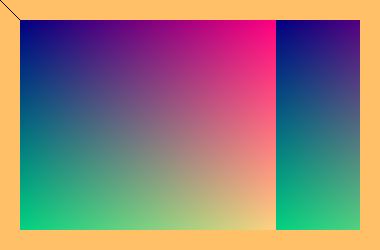
I provide a Java program that illustrates four ways of drawing from a Java application, of which three provide pixel access. We use the method setRGB to draw the background. Alternatively we use setPixels or setPixel on the WritableRaster, access to which has been extracted from the BufferedImage. Change (1>0) to (1>1) to use the 2nd alternative.
With Java 1.5 or 1.6 on my Mac I get:
pix.jpeg
pix.png (This should look like the image above.)
On my Mac (OS X 10.8.2, Java version 1.8.0-ea) I get such a picture on my screen with
javac JavaPix.java
java -cp . Main pix.png pix.jpeg
The first command produces files MainCanvas.class and Main.class which the second command uses. The second command forms an image on the screen and produces files pix.png and pix.jpeg as shown above. The screen image includes an ellipse which is drawn when paint is called—the ellipse but not the shading, remains tangent to the window edges if you manually resize the window. The two files do not have the ellipse because it is only computed as the pixels are put on the screen. The size of the png file produced by the program is 115KB. If you open and export the png file using the Apple’s Preview program that comes with OS X, the new size is 1028 bytes. Beware, sometimes Preview expands .png files.
I just now (2013 April) found Java 1.8 EA here. It would seem that Apple does not trust Oracle’s code and so you must perform the shell command:
xattr -d ~/Downloads/com.apple.quarantine jdk*if you wish to trust this Oracle code on your machine.
Having computed the picture once, the paint method of our MainCanvas class refers to the BufferedImage as Main.I, and then draws the oval. Thus we access the constant image each time the window is resized.
Here is the program that created my favicon. To produce the file I did:
javac favicon.java
java -cp . Main
Putting the resulting file favicon.ico in my top level web site directory sufficed except for Safari which also worked when I added the line “AddType "image/jpg" .ico” to the file .htaccess in the same directory. It seems that older Explorer browsers still act as if a favicon must be a .gif file.